
Uncategorised
DistroKid Cover Art Size: The Real Requirements (No Guessing)

Jun
Getting the DistroKid cover art size right is the difference between a smooth release and an upload that gets rejected days later.
So you’re finally ready to release your music on DistroKid. You’ve got the track mastered, the metadata filled in, and then — the cover art upload screen. Suddenly you’re second-guessing yourself. Is the file the right size? Wrong format? Will they reject it?
Let’s go through exactly what DistroKid requires — and what happens when you don’t meet it.
The Actual DistroKid Cover Art Size Requirements
Here’s what DistroKid’s own help center states:
- Minimum size: 1000 x 1000 pixels
- Recommended size: 3000 x 3000 pixels
- Shape: Square (1:1 ratio)
- Format: JPG preferred
- Color mode: RGB
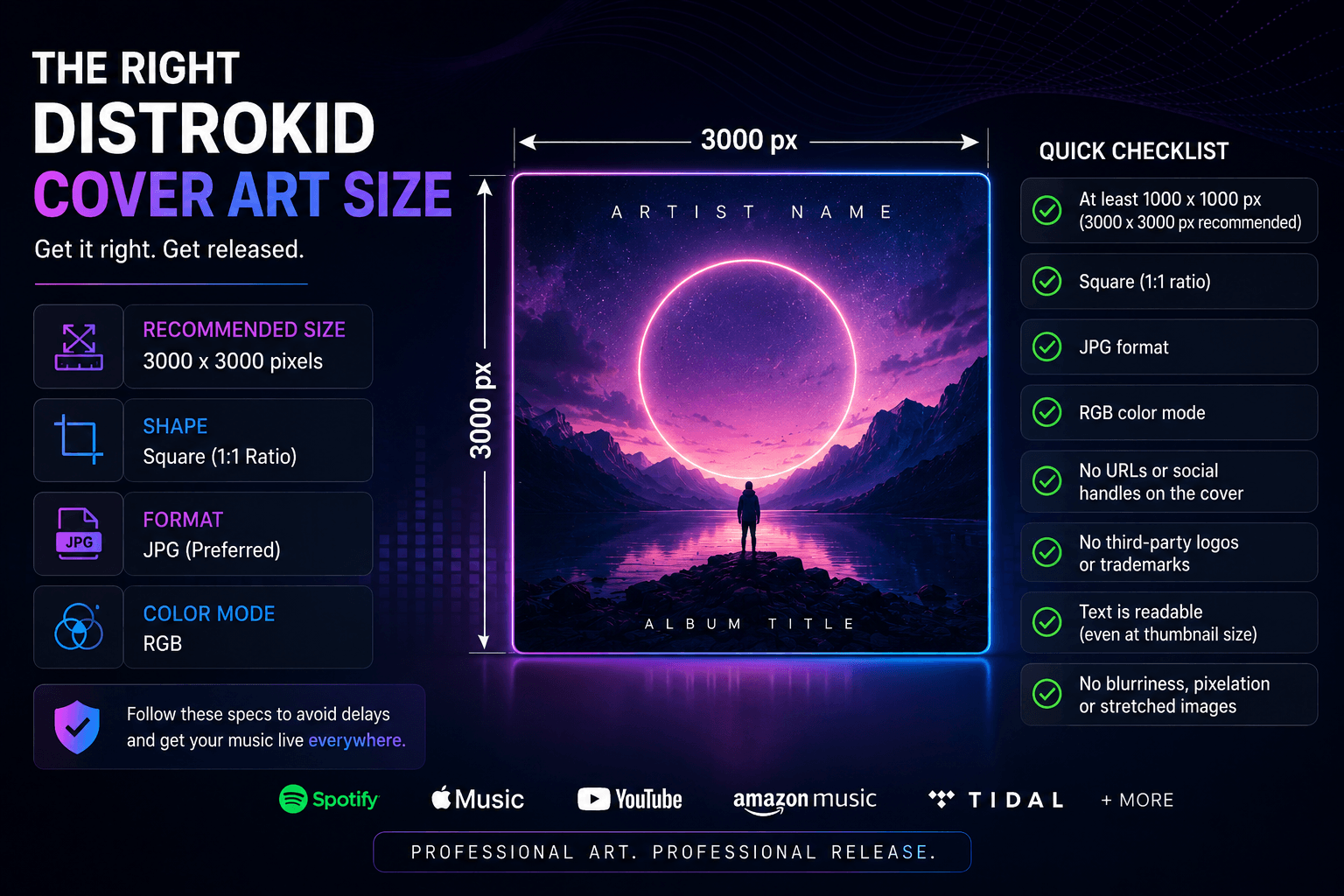
That’s it. A 1000px image technically passes the minimum. But “technically passes” and “looks good across every platform” are two different things — and that gap matters more than most artists realize.
Why 3000 x 3000 Is Still the Right Target
The 1000px minimum exists so that older or lower-resolution artwork isn’t hard-blocked. DistroKid will adjust images that don’t perfectly meet spec rather than rejecting them outright. But here’s the problem: the stores your music lands on — Spotify, Apple Music, Amazon, Tidal — each display art at different sizes, some up to 3000px on retina screens. If your source file is 1000px and it gets upscaled to 3000px, it looks soft. Blurry thumbnails on Spotify don’t kill a release, but they do signal low production value to listeners who notice.
The professional standard across the industry is 3000 x 3000 pixels. That’s what mastering engineers, label art departments, and experienced independent artists upload. It’s not a hard cutoff — it’s the size where you stop thinking about it.
In our experience running the shop, the most common reason a cover ends up looking low-quality has nothing to do with the original file — it’s what happens to it afterward. A few patterns come up again and again:
The artist re-edits the file and exports it at a low DPI. We deliver art at full resolution, but if you open it, make a small change, and export it from your editor with the DPI or quality settings turned down, you’ve quietly degraded the file before it ever reaches DistroKid. The fix is simple: when you re-export, keep the dimensions at 3000 x 3000 and the JPG quality high (85–95%).
Over-compressing the image. Running the file through an aggressive “compress to save space” tool, or saving a JPG at very low quality, throws away detail you can’t get back. The file gets smaller, but the artwork picks up blocky artifacts that show up clearly once a platform displays it at full size. There’s no need to compress — a properly exported 3000px JPG is already only a few megabytes, well within every platform’s limit.
What “DistroKid Will Adjust It” Actually Means
If you upload a rectangular image, DistroKid will crop or pad it to square. If you upload something under-spec, it may resize it. This sounds forgiving — and it is, technically — but you lose control of how the final image looks. A crop that DistroKid chooses might cut off your artist name. A resize applied to a low-resolution file just makes the blurriness larger.
The takeaway isn’t “any image works.” It’s: submit the right DistroKid cover art size yourself so the system never has to touch it.
The Rules That Aren’t About Size
Pixel count gets all the attention, but these content rules are what actually delay or kill releases — because violations are caught by the stores after DistroKid accepts the file, sometimes days later:
Text issues:
- No URLs or social media handles on the cover. “@yourname” in the artwork is an immediate flag at most stores.
- Artist name and title are expected and fine — but they need to be legible even at thumbnail scale (around 100 x 100px on most mobile views).
Image quality:
- Blurry, pixelated, or stretched images are rejected. Upscaling a small image to 3000px in Photoshop does not fix the quality — it just makes it a large blurry image.
- Solid-color or near-blank covers without meaningful design are also flagged.
Content:
- No third-party logos, brand trademarks, or app icons.
- No screenshots of streaming platform interfaces.
- Explicit content must be flagged in the release settings, not just on the artwork.
“My Cover Looks Low-Quality” — Check Your Screen First
Here’s something we run into constantly: an artist looks at their cover on an old or low-quality monitor, decides the image is bad, and assumes the file is the problem — when the file is actually fine.
The same image genuinely looks different on different screens. An aging LCD, a cheap display, or a screen with poor color calibration can make a perfectly good 3000px cover look dull, soft, or off-color. View the exact same file on a calibrated monitor or a modern phone screen and it looks sharp again.
Before you conclude your artwork is low-quality, open it on a second device. Most of the time the file was never the issue — the screen was.
CMYK vs. RGB — The Silent Killer
This one catches designers who work in print. If your Photoshop document is in CMYK mode, the exported JPG is still CMYK — and the upload may fail with a vague error that doesn’t name CMYK as the cause.
Before exporting: Image > Mode > RGB Color in Photoshop. In Affinity Photo: Document > Color Format > RGB. Canva exports RGB by default. Getting this right is one of the last steps before your DistroKid cover art size and format are fully compliant.
What Size Should You Design At?
When it comes to DistroKid cover art size, the answer is 3000 x 3000 pixels, exported as JPG at 85–95% quality. That typically produces a file between 2–6 MB — fast to upload and well within any platform’s limits. Design at 300 DPI if you want a print-ready version of the same file; export at 72 DPI for screen-only use.
Set your canvas to square before you start. Cropping a landscape photo into a square at the end is how you end up with cut-off subjects and repositioned text.
Quick Checklist: DistroKid Cover Art Size and Quality
- Image is square (width = height)
- At least 1000px per side (3000px recommended)
- File is JPG
- Color mode is RGB
- No URLs or social handles visible
- No third-party logos or trademarks
- Text is readable at 100 x 100px
- No blurriness or pixelation
Get It Right the First Time
The minimum exists. But if you’re serious about your release, you’re not aiming for the minimum — you’re aiming for art that looks professional on every screen it appears on, at every size a platform might display it.
Every cover in the Buy Cover Art catalog is delivered at the correct DistroKid cover art size — 3000 x 3000 pixels, RGB JPG — ready to upload to DistroKid, TuneCore, Spotify for Artists, or any other distributor. And if you want to go further with your Spotify presence, read our guide on Spotify Canvas size — the looping visual that boosts streams by up to 145%. No format check, no resize guessing, no rejection risk.
Browse the catalog. Your release date is too important to lose over a file that wasn’t ready.