
Motion Designe
Spotify Canvas Size: The Complete Guide to Specs That Actually Upload (2026)
Jun
Getting the Spotify Canvas size right is the difference between a looping visual that makes people stop and watch — and an upload that gets rejected before your release goes live.
If you’ve never set one up, here’s why it’s worth the effort: tracks with a Canvas see up to 145% more streams on average. That short loop behind your song isn’t decoration — it’s one of the few free tools Spotify gives you to fight for a listener’s attention. So let’s get the specs exactly right.
What Is a Spotify Canvas?
A Spotify Canvas is a short, looping visual that replaces your static album cover in the Now Playing view of the Spotify mobile app. Instead of a still image, listeners see a 3-to-8-second video that loops seamlessly while your track plays.
It fills the screen vertically — which is the single most important thing to understand about the format, because it changes everything about how you design it.
The Actual Spotify Canvas Size Requirements
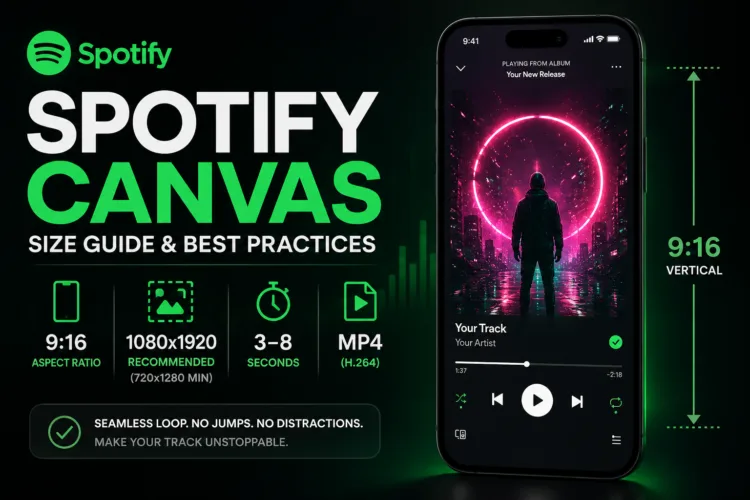
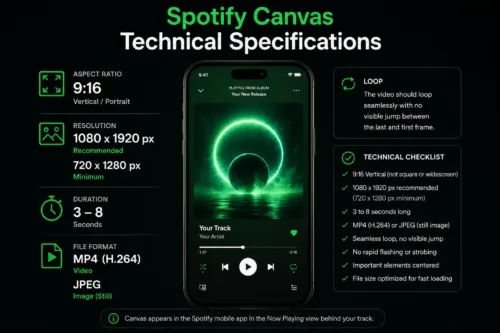
Here are the current specs your file needs to meet:
- Aspect ratio: 9:16 (vertical / portrait)
- Resolution: 1080 x 1920 pixels recommended (720 x 1280 is the minimum)
- Duration: 3 to 8 seconds
- Format: MP4 (H.264) for video — a still JPEG is also accepted
- Loop: it should loop cleanly, with no hard jump between the last and first frame
Hit all of these and your Canvas will pass Spotify’s upload check.
The One Mistake That Gets a Canvas Rejected
This is the trap almost everyone falls into the first time: uploading a square or widescreen video.
A Canvas must be 9:16 vertical. Square (1:1) and widescreen (16:9) files are rejected automatically — there’s no exception and no warning that fixes it for you. If you already make content for Instagram Reels, TikTok, or YouTube Shorts, you’re working in exactly the right shape. If you’re repurposing a landscape music video, you’ll need to reframe it to vertical first.
This comes up constantly. People send a horizontal or square image and assume it can become a Canvas — but a wide or square frame can’t simply be stretched into 9:16 without distorting it.
Here’s how the fix has changed. It used to be genuinely tedious: if the image had a clear subject, I’d cut the subject out from the background, then manually rebuild the missing background to extend it into a tall vertical frame. If it didn’t have a usable subject, the file just wasn’t usable at all. Today, AI tools make this far easier — you can fill in the extra vertical space and reframe a horizontal image into 9:16 in a fraction of the time. (On our sister site, Anaruh, customers can even generate AI cover art directly, which has made this whole process much simpler than it used to be.)
The takeaway for you: start with a vertical 9:16 source whenever you can. But if all you have is a horizontal or square image, it’s no longer a dead end the way it once was.
Why 1080 x 1920 Instead of the Minimum?
The 720 x 1280 minimum exists so older or lighter files still work. But most phones today have high-resolution screens, and a 720px file can look soft on them. Designing at 1080 x 1920 keeps the loop sharp on modern devices without making the file heavy.
Keep the file size modest, too. A lightweight MP4 loads instantly even on a weak connection, which matters because your listeners are spread across every kind of network and device. A huge file can stutter or load slowly — and a Canvas that hesitates defeats the whole purpose.
Design Tips That Make a Canvas Work
The technical specs get you accepted. These choices make the loop actually good:
Match the mood, not the volume. A subtle, atmospheric loop usually outperforms a busy, over-produced one. If the track is calm, the visual should breathe with it. If it’s aggressive, the motion can be too. The Canvas should enhance the song, not compete with it.
Avoid heavy cuts and intense flashing. Spotify recommends against rapid cuts and strobing visuals. Beyond their guidance, flashing loops are simply tiring to watch on repeat.
Loop it seamlessly. The end of the clip should flow back into the beginning with no visible jump. A clean loop feels hypnotic; a broken one feels like a glitch.
Keep key elements centered. The vertical frame crops differently across devices. Anything important — a figure, a logo, a focal point — should sit comfortably in the middle, not at the very edges.
A few words on how I actually build the loop, since this is where most Canvas attempts fall apart. I always use the original cover as the base — the loop should feel like the cover coming to life, not a different image.
The hard part has always been making the motion return to its starting point so there’s no visible jump. The old way was fiddly: I’d build the movement starting from a middle frame, animate the first half, then mirror it in reverse for the second half so the end met the beginning. It worked, but it was slow and limited the kind of motion I could use.
AI changed this. Now I set the original cover as both the start frame and the end frame, write a prompt for the motion I want, and the AI generates the middle of the loop between those two fixed points. Because the start and end are the same frame, the loop closes itself automatically — no manual mirroring needed. That’s the single biggest reason animated covers got faster and smoother to make.
The practical lesson for you: a great Canvas loop usually begins and ends on the same frame. If you’re making your own, plan for that from the start.
How to Upload Your Canvas
Canvas is added through Spotify for Artists, not directly on the regular app:
- Open Spotify for Artists and find the track.
- Choose the option to add a Canvas.
- Upload your 9:16 MP4 (3–8 seconds).
- Save. It may take a short while to appear for listeners.
You can update or replace a Canvas later, so it’s not a one-time, locked decision like album artwork is. Speaking of album artwork — if you’re also distributing through DistroKid and want to make sure your static cover meets all their requirements, read our guide on DistroKid cover art size.
Quick Checklist: Spotify Canvas Size and Format
- Video is 9:16 vertical (not square, not widescreen)
- Resolution is at least 720 x 1280 (1080 x 1920 recommended)
- Length is between 3 and 8 seconds
- File is MP4 (H.264)
- The loop has no visible jump
- No rapid flashing or strobing
- Important elements are centered
- File size is small enough to load instantly
Make Your Canvas Count
A Canvas is one of the cheapest, highest-impact upgrades you can make to a release — and most artists either skip it or upload something that doesn’t fit the frame. Getting the Spotify Canvas size and motion right puts you ahead of the majority by default.
If you’d rather not build one from scratch, you have two easy options. The animated covers in the Buy Cover Art catalog are made for exactly this — delivered in the correct 9:16 vertical format, the right length, and ready to upload to Spotify for Artists without a rejection. Browse the animated collection and give your next track a Now Playing screen worth watching.
And if you’d like to design something completely your own, our sister platform Anaruh lets you generate custom AI cover art in minutes — the same technology that makes reframing and filling a vertical Canvas so much easier today than it used to be. Whichever route you choose, the goal is the same: a Canvas that fits the frame and pulls listeners in.